Loading an Animation
An animation is a series of images (frames) that are displayed one after the other at a fast enough rate to give the appearance of motion.
The sprite.addAni function adds an animation to a sprite. It works with three different
animation formats: sequence, list, and sprite sheet.
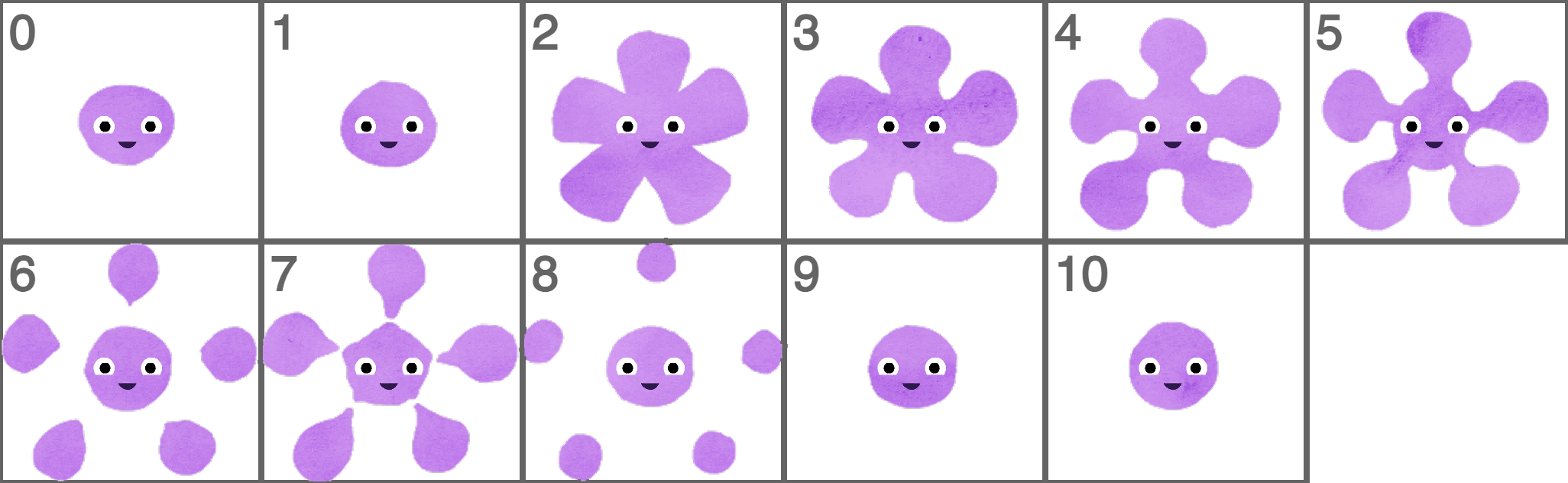
In this code example, the cloud breathing animation is loaded using a numbered sequence of images given the path to the first frame and the index of the last frame in the sequence.
sprite.addAni can also be provided a list of frames.
The ani.frameDelay property specifies how long each frame in the animation is displayed.
The default is 4. Higher values make the animation play slower. A frame delay of 1 would make the
animation play as fast as possible.
Try changing the frame delay in this code example!
A sprite sheet is a single image that contains all the frames of an animation.

Every frame in a sprite sheet must be the same size, grid aligned, and in order from left to right, top to bottom.
You only need to specify the size of each frame if the sprite sheet has multiple rows.
Animating
sprite.ani stores the sprite's current animation, which enables access to its properties
and functions like play and stop.
Try using your keyboard to control the animation!
Changing Animations
Use the sprite.changeAni function to change a sprite's animation.
The name of an animation can be determined by the last part of the image file name. You can also
specify an animation's name as an optional first parameter to sprite.addAni.
Press left and right on your keyboard to make the ghost move.
Groups with Animations
If an animation is added to a group, new group sprites will receive a copy of that animation.
Note that in this mini example if you put splats too close together they'll move apart until their colliders are no longer overlapping. The size of the collider is taken from the size of the animation.
Try clicking the mouse to add new splats!
Sprite Sheet of Animations
To load multiple animations use the addAnis function, which accepts two input
parameters:
- a sprite sheet image or url
- frame size (given as a string like "32x32")
- an object that uses animation names as keys and atlas objects as values.
Click this link to see the full questKid sprite sheet used in the example.
Anis
Every sprite and group has an anis object that stores its animations. The keys are
animation names and values are animation objects.
In this example, the frameDelay and offset settings are inherited by
all the animations added to the sprite.
Set ani.offset to adjust the position of an animation relative to the sprite's
position.
Sprite Sheet of Images
Some sprite sheets contain a collection of images (subtextures) packed into a single file. This enables them to be loaded with one network request, reducing loading time and improving performance.
Take a look at the traffic sprite sheet from Kenney's "Pixel Vehicle Pack".
In q5play, each subtexture can be loaded as a single frame animation.
Texture Atlas
A texture atlas describes the size and position of each subtexture within a tightly packed sprite sheet. For example, see the traffic texture atlas.
Use parseTextureAtlas to parse an xml texture atlas into an object that can be used
with addAnis.
Cut Frames
When sections of a pixel art (low resolution) sprite sheet are drawn to the canvas, edge artifacts can occur.
In this example, notice how the edges contains parts of other vehicles?
Set anis.cutFrames to true before loading animations to make q5play cut a sprite
sheet image into separate images for each frame.
Animation Sequencing
sprite.playAnis accepts the names of animations to be played in sequence.
You can put special modifier characters before each animation name:
!plays it backwards>or<horizontally flips it^vertically flips it
Try it!
Move the hero character using your keyboard.
Try editing the code example to make the hero do a somersault or jump on their head!
Advanced Sequencing
sprite.playAni is an async function, you can use it to wait for animations to finish
playing. It's particularly useful for scripted animation sequences for NPCs.
The delay function delays for a given number of milliseconds or if a time is not
specified, for a single draw frame.
Be careful with while loops: if their condition is never met, they can loop infinitely.
Unless code within the loop includes asynchronous waiting, an infinite loop can crash the browser!
In this code example, the hero character is practicing their sword wielding skills. By running
practice() inside of itself, a recursion
loop is created that makes the hero practice indefinitely.
Visuals
Want to draw thousands of images or animations? You'll need something simpler than a sprite!
Visuals are perfect for particle effects, like the coins splash in this mini example.
Visual objects have x, y, vx (velocity x),
vy (velocity y), tint, and opacity properties. They can't be
rotated or scaled.
Each visual also has a life value, that determines how many frames it will be drawn for.
The Visuals class is an array of visuals. They're not drawn automatically, so use
visuals.draw() to draw them.
Use visuals.cull() to avoid drawing visuals that are outside of the camera view.
visuals.addTiles can be used to make a collection of visuals based on a tile map, such
as for tile-based backgrounds or foregrounds that don't require physics interactions.